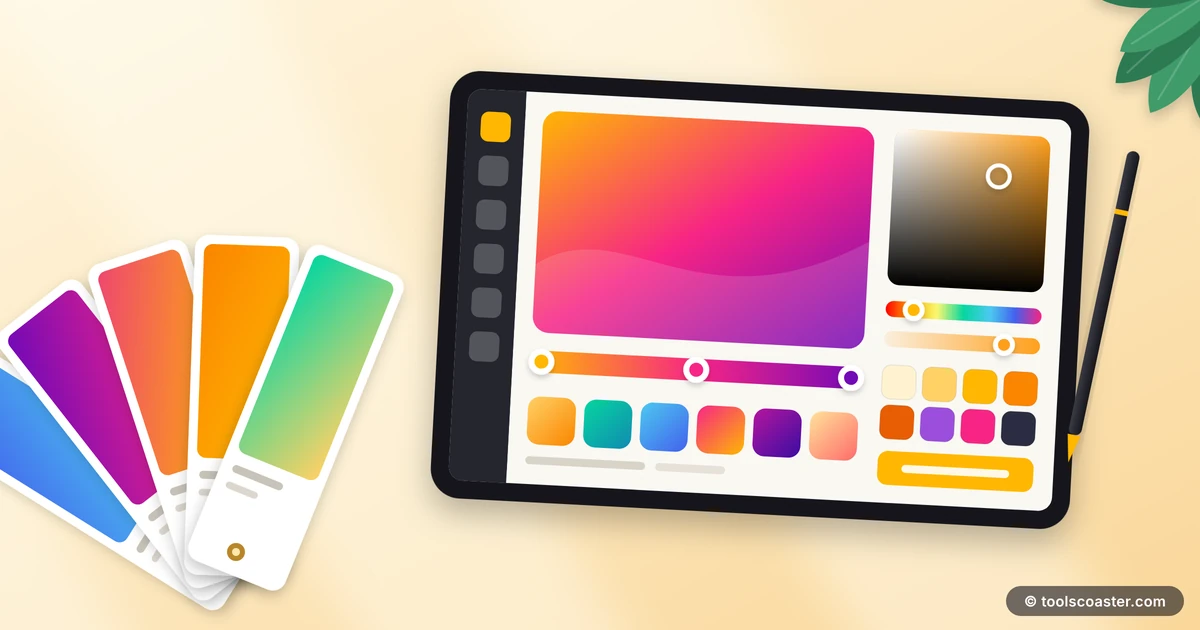
 generator
CSS Gradients and Color Palettes: Design Generators Explained
The quickest way to make a website look amateur is a bad gradient. I have seen beautiful layouts undermined by a background that fades through a muddy grey-brown in the middle, and I have made that exact mistake myself. The good news is that smooth gradients and balanced palettes follow a few learnable rules — and generators handle the tedious parts so you can focus on the choices that matter.
This is a practical guide to building colour that looks intentional rather than accidental.
Why gradients go wrong
A gradient is a smooth transition between colours, but "smooth" is doing a lot of work in that sentence. When you blend two colours, the in-between values are computed in a colour space, and if your two endpoints sit far apart on the colour wheel, the path between them passes through dull, desaturated territory. That is the infamous muddy middle.
There are two reliable fixes. The first is to pick colours that are closer in hue — a blue to a teal, say, rather than blue straight to orange. The second is to add a middle colour stop that keeps the transition lively, steering the blend away from grey. A good gradient generator lets you drop in extra stops and see the result immediately, so you can nudge until the midpoint stays vivid.
The anatomy of a CSS gradient
Understanding the pieces makes the generator output far less mysterious.
- Type:
linear-gradientfades along a straight line;radial-gradientfades outward from a point;conic-gradientsweeps around like a colour wheel. - Direction/angle: for linear gradients,
to right,135deg, and so on set which way the fade travels. - Colour stops: each colour with an optional position (
#4F46E5 0%,#EC4899 100%). Add more for richer transitions.
A typical result looks like linear-gradient(135deg, #4F46E5, #EC4899). The 135-degree diagonal is a popular default because it feels dynamic without being distracting. Rather than memorising the syntax, I let a gradient generator produce ready-to-paste CSS and then tweak the numbers by hand if needed.
Building a palette that holds together
Gradients are one colour decision; a full palette is the bigger one. A site needs a small, disciplined set of colours that work together everywhere.
My starting formula is simple:
- One base colour that carries your brand personality.
- One or two supporting colours drawn from nearby or complementary positions on the colour wheel.
- A set of neutrals — greys and off-whites — for text, borders and backgrounds.
- Shades of each, created by varying lightness, so you have hover states and subtle variations.
The mistake beginners make is using too many hues. Professional-looking sites are usually restrained — a couple of real colours plus a lot of carefully chosen neutrals. A colour palette generator can propose harmonious sets from a single starting colour, which is a huge head start if colour theory is not your strength.
A quick worked example
Start with a brand indigo, #4F46E5. Feed it to a palette generator and it will suggest a complementary accent (a warm pink or coral sits opposite indigo on the wheel), plus tints and shades for states. Pair the indigo and pink as your gradient endpoints, reserve the neutrals for text and surfaces, and you have a coherent system from one decision — rather than ten unrelated colours fighting each other.
Getting the colour code you actually need
Design and code speak slightly different colour languages. A generator will hand you HEX for quick sharing, but you often need RGB or RGBA for transparency, or HSL when you want to tweak a colour by hand. Because HSL separates hue, saturation and lightness, it is the easiest format for making a "slightly darker" or "less intense" version — you just adjust one number. If you have a colour in one format and need another, a colour converter translates between HEX, RGB and HSL instantly.
Practical tips I keep coming back to
A few habits consistently produce better results.
- Check contrast. Light-grey text on a pale gradient may look elegant on your monitor and be unreadable for others. Keep body text well within accessibility contrast ratios.
- Limit gradients. One confident hero gradient beats gradients on every button and card. Restraint reads as premium.
- Reuse tokens. Define your palette once as CSS variables and reference them everywhere, so a colour change is a one-line edit rather than a find-and-replace.
- Test on real content. Colours behave differently behind text and imagery than they do as big flat swatches.
The payoff
Colour is the fastest signal a visitor reads about whether a site is trustworthy and cared-for. You do not need to be a trained designer to get it right — you need a disciplined palette, an awareness of the muddy-middle trap, and generators to handle the syntax and the harmony suggestions. Pick a base colour you love, build a small system around it, and let the tools turn your choices into clean, copy-paste CSS. The difference between "fine" and "polished" is usually just a few deliberate colour decisions.
Frequently Asked Questions
Why does my gradient look muddy in the middle?
Blending two distant hues passes through grey. Add a middle color stop or pick colors closer in hue to keep the transition vivid, then copy the generated CSS.
How many colors should a palette have?
A few core colors plus neutrals. Start with one base, add one or two related colors from the color wheel, then derive shades by varying lightness.
Can I get the CSS code from a generator?
Yes — a good gradient or palette generator outputs ready-to-paste CSS (and HEX/RGB values), so you don't hand-write color stops or guess hex codes.
Explore 500+ Free Online Tools
No sign-up. No cost. Forever free — for developers, writers & creators.