 color
colorAccessible Color Contrast: Meeting WCAG Without Guesswork
I once shipped a design I was proud of — elegant light-grey text on a white background, very minimal, very tasteful. Then a colleague tried to read it on his laptop in a sunlit room and couldn't make out a word. That was my introduction to colour contrast: the quiet accessibility rule that decides whether people can actually read your work, and one that looks fine on your calibrated monitor while failing everyone else.
Here's how contrast ratios and WCAG levels work, without the jargon.
Why contrast matters
Contrast is the difference in brightness between text and its background. High contrast (black on white) is easy to read; low contrast (light grey on white) is a strain, and for some people impossible.
It's not a niche concern. People with low vision, people with colour vision deficiency, older readers, and anyone using a phone in bright sunlight all depend on sufficient contrast. Low-contrast text that looks "sophisticated" to a designer with perfect vision on a good screen quietly excludes a real chunk of your audience. Accessibility guidelines exist precisely because the designer is the worst-placed person to judge whether their own text is readable.
Contrast ratios and WCAG levels
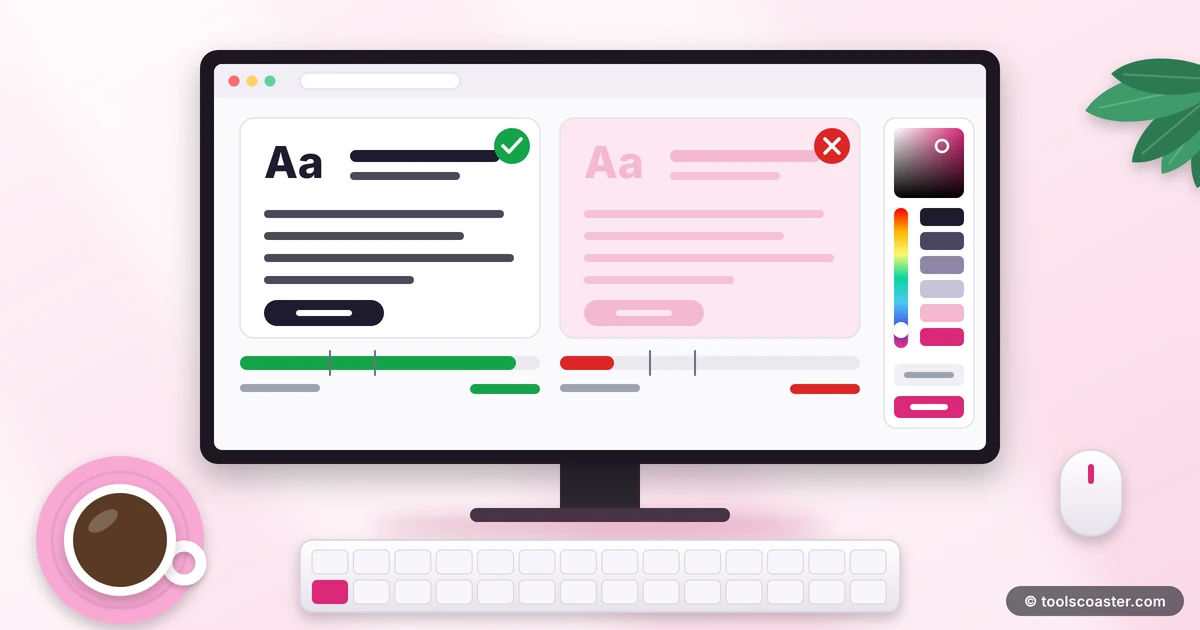
The Web Content Accessibility Guidelines (WCAG) put a number on it: the contrast ratio between two colours, running from 1:1 (identical, invisible) to 21:1 (pure black on pure white).
The thresholds you need:
- AA (the common standard): at least 4.5:1 for normal text, and 3:1 for large text (roughly 18pt+, or 14pt bold).
- AAA (stricter): 7:1 for normal text, 4.5:1 for large text.
AA is the level most sites aim for and many laws reference; AAA is the gold standard for critical content. You don't calculate these by eye — a contrast checker gives you the exact ratio for any two colours and tells you which levels pass.
A quick worked example
Take my elegant light-grey text, say #AAAAAA on white. Run it through a contrast checker and it scores about 2.3:1 — failing AA for normal text (which needs 4.5:1). Darken the grey to around #767676 and it jumps to about 4.5:1, scraping a pass; go to #595959 and you're comfortably clear at ~7:1, passing AAA. The design still looks clean — it's just readable now. That's the whole fix: nudge the lightness until the number passes, and a strain becomes effortless.
Fixing a failing ratio
When a combination fails, you have straightforward levers:
- Change the lightness. Darken the text or lighten the background (or vice versa). Working in HSL makes this easy — you adjust one value, the lightness, and watch the ratio climb.
- Don't just change the hue. Two colours can have very different hues and still have similar brightness, which fails for people who can't distinguish those hues. Contrast is mostly about lightness difference, not colour difference.
- Re-check after every tweak until the ratio passes the level you're targeting.
The key insight is that contrast is a brightness problem, not a colour problem — which is why it still matters even for users who see colour perfectly.
Don't rely on colour alone
A related rule saves you from a common trap: never use colour as the only way to convey information. Red-text-means-error and green-text-means-success are invisible to someone with red-green colour blindness (the most common form). Pair colour with an icon, a label, or underlining, so the meaning survives even if the colour doesn't land.
A colorblind simulator shows you how your design looks to people with different types of colour vision deficiency. Running your interface through it is eye-opening — a chart or a form that seemed perfectly clear can turn into a muddle, and you'd never know from your own screen.
Building it into your process
Accessibility is cheap when you bake it in and expensive when you retrofit. A few habits:
- Check contrast as you pick colours, not after launch. Define an accessible palette once and reuse it.
- Test real combinations — text over your actual background colours and images, not swatches in isolation.
- Target AA as a floor, AAA for body text and anything critical.
- Verify with a simulator so colour-coded elements work for everyone.
The takeaway
Colour contrast is the accessibility rule hiding in plain sight: the difference between text people can read and text that merely looks nice to you. Aim for at least 4.5:1 for normal text (WCAG AA), fix failures by adjusting lightness rather than hue, never rely on colour alone to carry meaning, and check your work with a contrast checker and a colorblind simulator. It costs almost nothing to get right and makes your content usable for far more people — including, eventually, future-you squinting at your own site in the sun.
Frequently Asked Questions
What contrast ratio do I need for text?
WCAG AA requires at least 4.5:1 for normal text and 3:1 for large text. AAA is stricter at 7:1. A contrast checker gives you the exact ratio for any two colors.
Why does contrast matter for accessibility?
Low contrast is hard or impossible to read for people with low vision or color vision deficiency, and difficult for everyone in bright sunlight. Good contrast makes content usable for more people.
How do I fix a failing contrast ratio?
Darken the text or lighten the background (or vice versa) until the ratio passes. Adjusting lightness in HSL is the easiest way; a colorblind simulator helps you check it works for everyone.
Explore 500+ Free Online Tools
No sign-up. No cost. Forever free — for developers, writers & creators.