 data
dataValidating and Comparing JSON Data Without the Headache
I once spent the better part of an afternoon hunting a bug that turned out to be a single trailing comma in a JSON config file. The error message was unhelpful, the file was long, and my eyes slid right past the problem a dozen times. That afternoon taught me to stop reading JSON by eye and start using tools that point straight at the fault. JSON is everywhere in modern development, and knowing how to validate and compare it quickly is a genuine time-saver.
Here is how to catch malformed JSON and spot the differences between two payloads without losing an afternoon.
Why JSON breaks (and why it is easy to miss)
JSON looks forgiving but is actually quite strict, and its most common errors are tiny and visually sneaky.
- Trailing commas. A comma after the last item in an object or array is invalid JSON, even though many languages allow it. This is the number-one culprit.
- Single quotes. JSON requires double quotes around strings and keys.
'name'is invalid;"name"is correct. - Unquoted keys.
{name: "Sam"}is JavaScript, not JSON. Keys must be quoted:{"name": "Sam"}. - Missing commas or brackets. An unclosed brace or a missing comma between items derails the whole parse.
The frustrating part is that one small mistake invalidates the entire document, and parsers often report the error at a confusing location — sometimes lines away from the real problem. Scanning a large file by eye for a misplaced character is exactly the task humans are worst at.
Validating: let the parser find it
Instead of squinting, paste the document into a JSON validator. It attempts to parse the JSON and, if it fails, points at the exact line and character where the structure broke. That pinpointing turns a half-hour hunt into a five-second fix.
A validator also doubles as a formatter. Minified JSON — everything crammed onto one line with no spacing — is unreadable, and buried errors are impossible to see. A JSON formatter pretty-prints the data with proper indentation, so the structure becomes visible and problems stand out. I run everything through a formatter first; half the time the error is obvious once the nesting is laid out cleanly.
A quick worked example
Take {"items": [1, 2, 3,], "ok": true}. By eye it looks fine. Paste it into a validator and it flags the comma after 3 — a trailing comma inside the array — with the exact position. Remove it, re-validate, and you get a clean parse. The tool found in one second what the eye skips over because the comma looks perfectly natural sitting there.
Comparing: finding what changed
The other JSON headache is comparison. You have two payloads — an old API response and a new one, a config before and after an edit, an expected result and an actual one — and you need to know exactly what differs. Scanning two long JSON blocks side by side, trying to match fields, is slow and unreliable; the difference is often a single nested value.
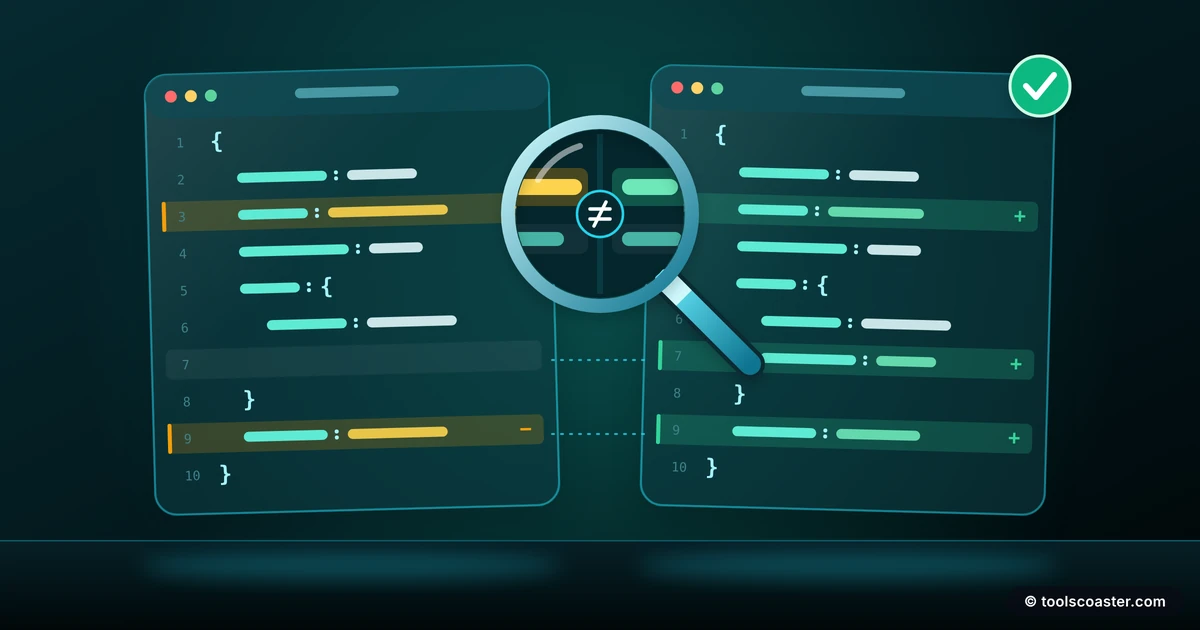
A JSON compare tool formats both documents and highlights the differences — fields that were added, removed, or changed — so the delta jumps out instead of hiding. This is invaluable when debugging an API that "worked yesterday": compare yesterday's response with today's and the one changed field is immediately visible.
Order and whitespace can create false differences in naive comparisons, which is why a proper JSON compare tool understands structure rather than just comparing text line by line. It knows that reordered keys with identical values are not a real change.
Reading deeply nested JSON
Large API responses can nest objects within arrays within objects, several levels deep, and a flat wall of text becomes genuinely hard to navigate. This is where a tree view helps: it renders the JSON as an expandable, collapsible outline, so you can drill into just the branch you care about and collapse the rest. For exploring an unfamiliar API response, that structured view beats scrolling through hundreds of lines.
Many formatters include a tree or collapsible view alongside the pretty-printed text, giving you both a readable layout and the ability to focus on one section at a time.
A practical JSON workflow
When I am dealing with any non-trivial JSON, my routine is consistent:
- Format first. Pretty-print the data so the structure is visible before doing anything else.
- Validate. If it will not parse, let the validator point at the exact error and fix it.
- Compare when debugging changes. For "it changed and I do not know how" problems, diff the two versions rather than hunting manually.
- Use a tree view for large or unfamiliar structures to navigate without drowning in text.
This takes seconds and replaces the eye-straining, error-prone manual approach entirely.
A note on privacy
One sensible habit: be mindful of what JSON you paste into any online tool, especially payloads containing personal data, tokens or credentials. For sensitive data, prefer tools that process everything locally in your browser rather than sending it to a server. When the data is non-sensitive — config, sample responses, public schemas — a quick online validate-and-format is perfectly fine.
The takeaway
JSON's strictness is a feature — it keeps data interchange predictable — but it means tiny mistakes have outsized consequences. Stop reading JSON by eye. A validator pinpoints syntax errors, a formatter makes structure visible, and a compare tool shows you exactly what changed between two versions. Build those three into your workflow and the trailing-comma afternoons become five-second fixes.
Frequently Asked Questions
How do I know if my JSON is valid?
Run it through a validator — it parses the JSON and points at the exact line and character of any error (usually a trailing comma, single quote or unquoted key).
How can I compare two JSON files?
A JSON compare tool formats both and highlights what differs, so you can see added, removed or changed fields instantly instead of scanning by eye.
What's a JSON tree view for?
A tree view renders nested JSON as an expandable outline, making deep structures far easier to navigate than a wall of text — great for large API responses.
Explore 500+ Free Online Tools
No sign-up. No cost. Forever free — for developers, writers & creators.