 css
cssCSS Transitions and Animations: Smooth UI Effects
The difference between an interface that feels cheap and one that feels polished is often just motion. A button that snaps instantly to its hover colour feels abrupt; the same button easing into the colour over 200 milliseconds feels considered. Good motion is one of the most noticeable upgrades you can make to a web interface — and one of the easiest to overdo. Here's how CSS transitions and animations work, and how to use them with restraint.
Transitions vs animations: the core difference
CSS gives you two tools for motion, and knowing which is which saves a lot of confusion.
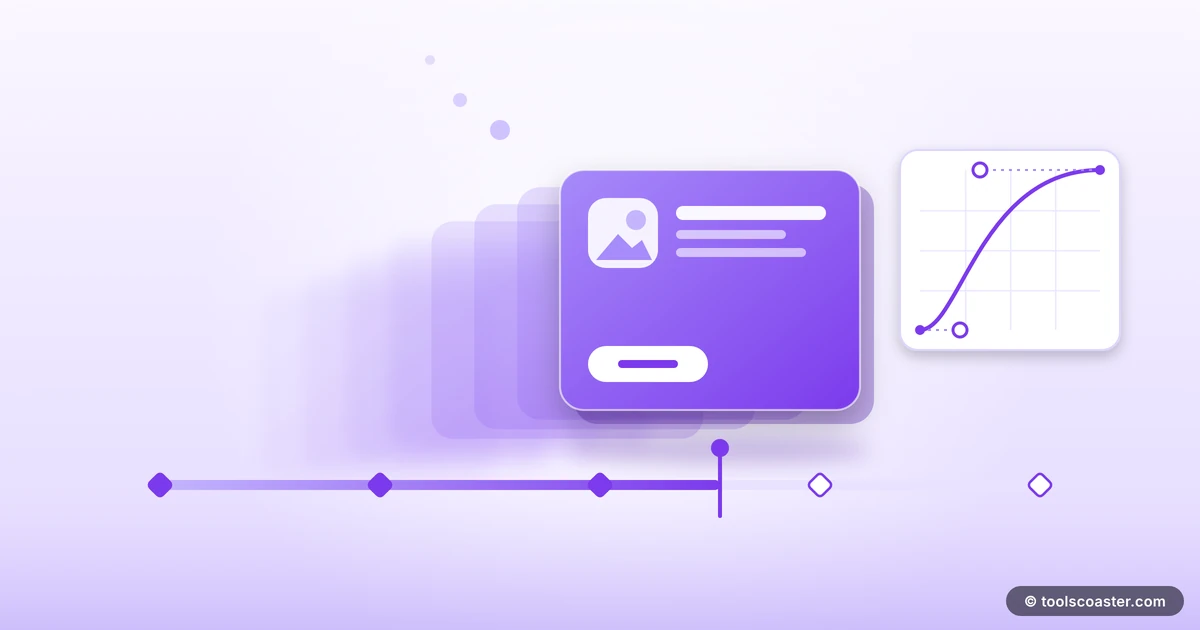
A transition animates a property smoothly between two states when something triggers it — most often a hover, focus or a class change. It's a point A to point B move: the button is one colour, you hover, it eases to another colour.
An animation (using keyframes) runs through a sequence of states and can loop on its own, with no trigger required. A pulsing notification dot, a loading spinner, a looping background — those are animations, because they move continuously through multiple steps.
The rule of thumb: use a transition for a simple state change, an animation for anything with multiple steps or that runs by itself.
How transitions work
A transition needs three things: which property to animate, how long it takes, and the easing curve. In CSS that's roughly transition: background-color 200ms ease-out; — animate the background colour, over 200ms, with an ease-out curve.
The property that most affects feel is the easing. Linear motion (constant speed) looks robotic and mechanical. Real objects accelerate and decelerate, so ease-out (fast then slowing) feels natural for most UI, as if the element is settling into place. A transition generator lets you experiment with properties, durations and easing visually and copy the CSS, which is far faster than tweaking numbers and refreshing.
How animations work
Animations use @keyframes to define steps, then apply them with the animation property. You name the keyframes, say what the element looks like at 0%, maybe 50%, and 100%, and CSS interpolates between them. You control duration, whether it loops (infinite), and the easing, just like a transition.
Keyframe animations are the tool for anything self-running: spinners, pulsing dots, attention nudges, looping hero effects. An animation creator builds the keyframes and the animation shorthand for you, so you can focus on the effect rather than the syntax.
A quick worked example
Take a call-to-action button. Add transition: transform 150ms ease-out, background-color 150ms ease-out; and a hover rule that nudges it up a couple of pixels and darkens it slightly. Now hovering feels like the button responds — it lifts and deepens smoothly instead of flickering to a new state. That's two lines of CSS turning a flat control into one that feels alive. Try the same lift as an instant change (no transition) and it looks broken by comparison. The motion is the whole difference.
Keeping motion smooth (and not janky)
Not all animated properties are equal, and this is where performance bites. Animating transform and opacity is cheap — the browser can offload them to the GPU, so they stay buttery even on weaker devices. Animating layout properties like width, height, top or margin forces the browser to recalculate the page layout on every frame, which causes visible stutter ("jank").
So the practical rule: prefer transform and opacity. Want to move something? Use transform: translate() instead of changing top/left. Want to resize? Use transform: scale(). Want to fade? Use opacity. You get the same visual effect without the layout thrashing.
The restraint rule
The biggest mistake with motion isn't technical — it's using too much of it. When everything moves, slides, bounces and pulses, the interface feels chaotic and slow, and the motion stops meaning anything. Good motion is mostly invisible: it guides attention and softens state changes without announcing itself.
A few guidelines:
- Keep UI transitions short — roughly 150–300ms. Long enough to perceive, short enough not to make users wait.
- Animate with purpose. Motion should clarify (this appeared, that's loading, you hovered here), not decorate for its own sake.
- Respect reduced-motion preferences. Some users disable animations for comfort or accessibility; honour the
prefers-reduced-motionsetting and tone things down for them. - Less, but better. One confident, well-timed transition beats ten competing ones.
The takeaway
Motion is a quiet superpower for web interfaces: transitions smooth out state changes on a trigger, keyframe animations handle self-running sequences, and together they make a UI feel responsive and considered. Use ease-out for natural feel, stick to transform and opacity to stay smooth, keep durations short, and — above all — use restraint. The goal is motion you feel but barely notice. Get it right and your interface will read as polished without a single user being able to say exactly why.
Frequently Asked Questions
What's the difference between a CSS transition and an animation?
A transition animates a property between two states on a trigger (like hover). A keyframe animation runs through multiple steps and can loop on its own, without a trigger. Use transitions for simple state changes, animations for sequences.
What makes motion feel smooth?
Easing and duration. Linear motion feels robotic; an ease-out curve feels natural. Keep most UI transitions around 150–300ms — long enough to notice, short enough not to annoy.
Which properties are cheap to animate?
transform and opacity are GPU-friendly and stay smooth. Animating layout properties like width, top or margin can cause janky reflows, so prefer transform where you can.
Explore 500+ Free Online Tools
No sign-up. No cost. Forever free — for developers, writers & creators.